How to create a clothing website in 15 minutes

- Who this clothing website is for
- What you need to create a clothing website
- How to make a clothing website: a step-by-step guide
- Step 1: Choose a clothing website template
- Step 2: Add your clothing brand information
- Change the brand name
- Add your contact details
- Add your products
- Customize the contact form
- Add shipping and return information
- Add a new block
- Delete a block
- Step 3: Customize the clothing website design
- Step 4: Publish your clothing website
- How to promote your clothing website
- What to track after launch
- Manage customer requests with CRM
- The bottom line
- FAQ
- How long does it take to create a clothing website?
- Can I create a clothing website without coding?
- What should a clothing website include?
- Can I use a custom domain for my clothing website?
A clothing website brings your products, brand information, and contact details together in one place. It also gives customers a simple way to browse your collections and place orders.
We’ll cover which tool you can use to create your clothing website, how to add your store content, and how to customize the site to fit your brand. First, let’s look at what you should do before creating your website.
The clothing website we’ll create in this guide works best in two cases.
- Local clothing stores. You can showcase your products online without setting up online checkout or delivery. Customers can browse your collection and contact you to place an order or arrange pickup.
- Social media landing pages. If you already have an online store, you can create a separate page for a new collection or promotion. Add its link to your social media bio, posts, or stories. This gives visitors a focused, mobile-friendly page without adding another page to your main website.
Prepare your content before you start building your website. This will make the process faster.
You’ll need:
- Your clothing brand name and logo.
- High-quality photos of your products.
- Product names, prices, and descriptions.
- Your social media profile links.
- Shipping and return information.
- Contact details for customer support.
You can also prepare a short description of your brand. Use it to introduce your clothing line on the website.
For this guide, we’ll show you how to create a clothing website with Taplink. Taplink is a mobile-first website builder that helps you create a website for any niche, including a clothing business. You can create a website in Taplink in three ways: with a template that includes ready-made content, with AI, or from scratch.
In this article, we’ll show you in detail how to create a clothing website using a template. As an example website, we’ll use this modern clothing store. For easier viewing, it’s separated into three images.
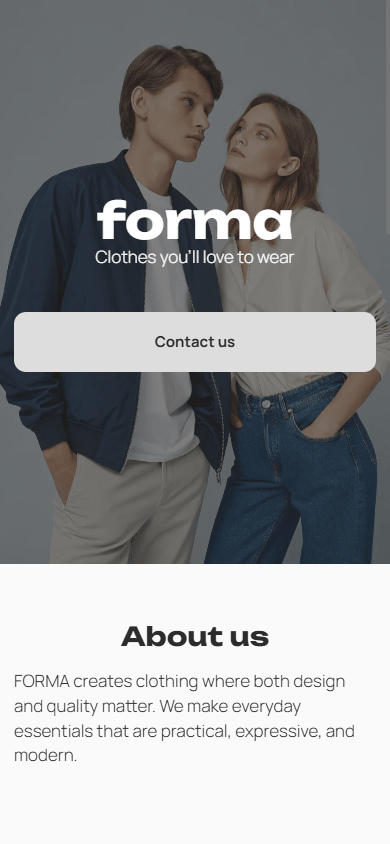
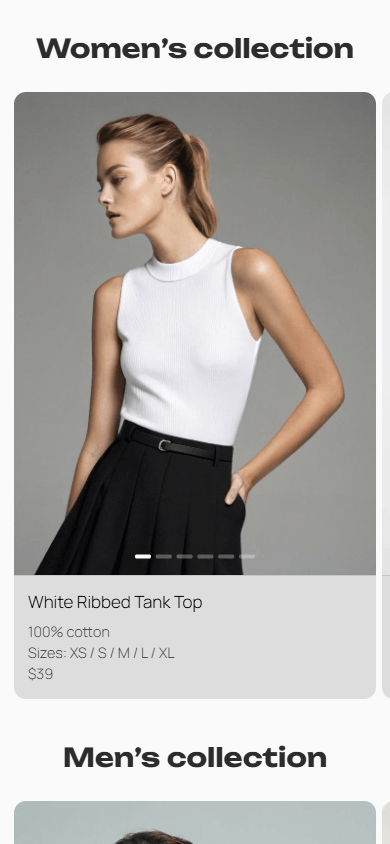

The basic process of making a clothing website with a template looks like this:
- Sign up and choose a clothing website template.
- Replace the sample content.
- Customize the design.
- Publish your website.
Let’s go through each step.
To open the template library, you need to sign up.
Taplink has templates designed for clothing brands, boutiques, stores, and product lines. They include product catalogs, descriptions, contact buttons, and forms, so you can showcase your clothing and make it easy to place an order.
If you like the website shown above, choose this modern clothing store template. We’ll walk you through the process using this template.
To choose a different template:
01. Go to the Landing pages tab.
02. Open the Fashion & style category.
03. Pick a template.
04. Tap Choose.
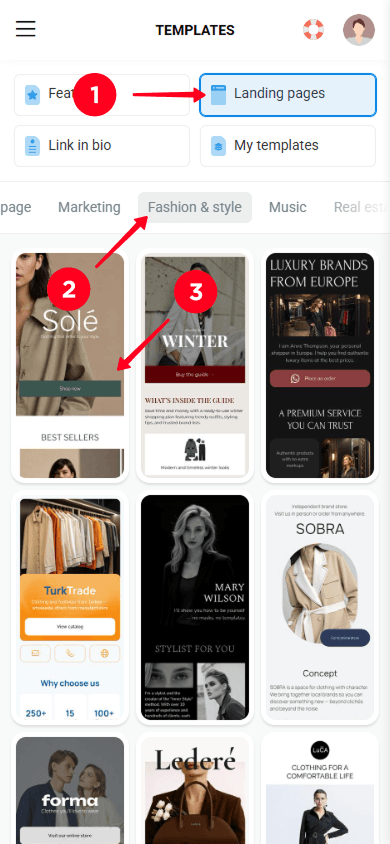

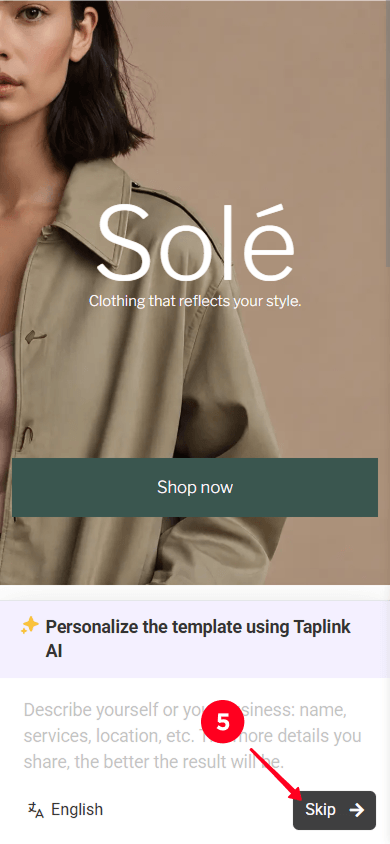
05. Optionally, you can generate copy using the built-in AI by providing a description of your brand and tapping Next. Otherwise, tap Skip.
06. Tap Yes.

Now replace the template content with your own information. Start with the top of the page. Visitors should immediately understand what your brand sells.
Some content blocks are available on paid plans. To change your website plan, go to the pricing page.
The template already has a text block for the brand name. Replace its content with your own name:
- Tap the name.
- Delete the existing text and enter your brand name.
- Save the changes.
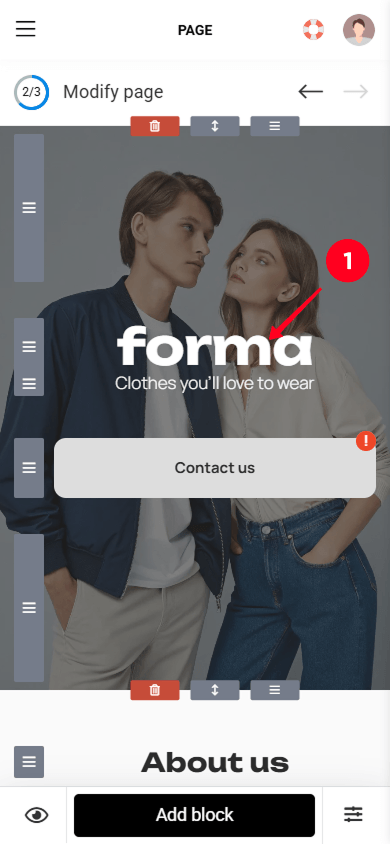

You can edit all the other text blocks on the website in the same way.
Add your contact details so customers can easily reach you, ask a question, or place an order. To add your contact details:
- Tap the button.
- Enter your WhatsApp number.
- Optionally, add another messenger app by tapping Add new item and filling out the details.
- To delete a messenger app, tap the trash icon.
- Save the changes.
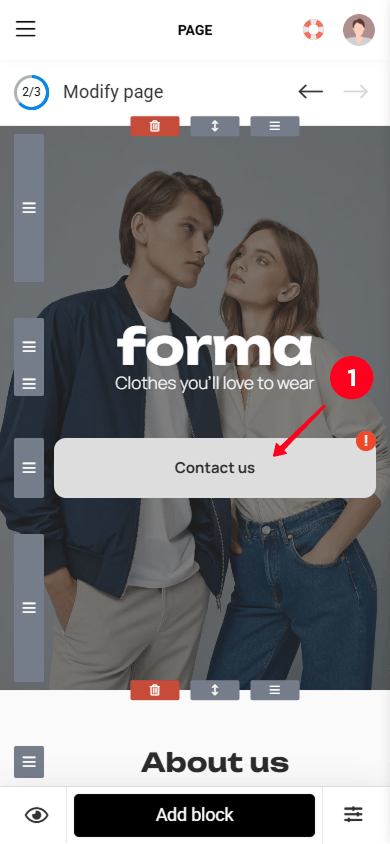

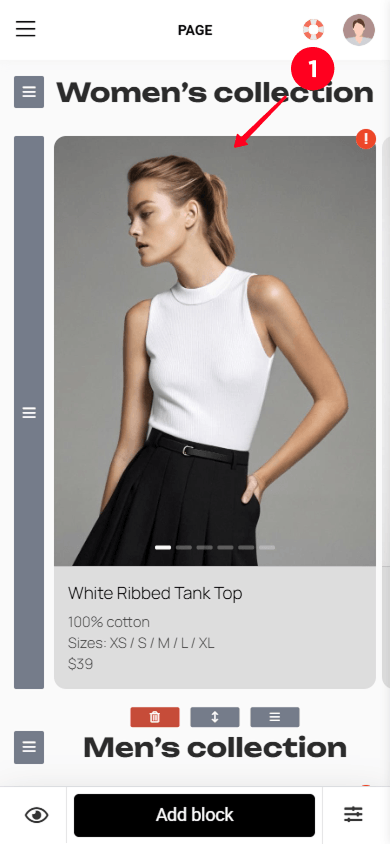
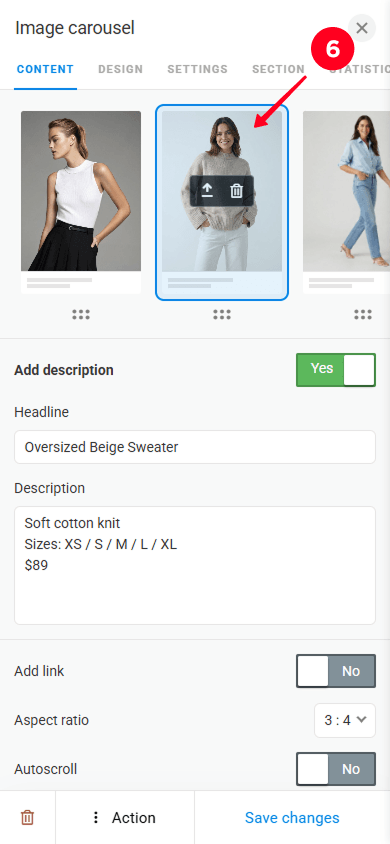
The products are shown in an image carousel. Add your own products and their descriptions. To do this:
01. Open the Image carousel block.
02. Tap the upload button to upload a photo of your product.
03. Enter your product name.
04. Enter your product description.
05. Optionally, add a link. To do so, switch the Add link toggle and customize the fields. This link can lead, for example, to a separate product page within your website.
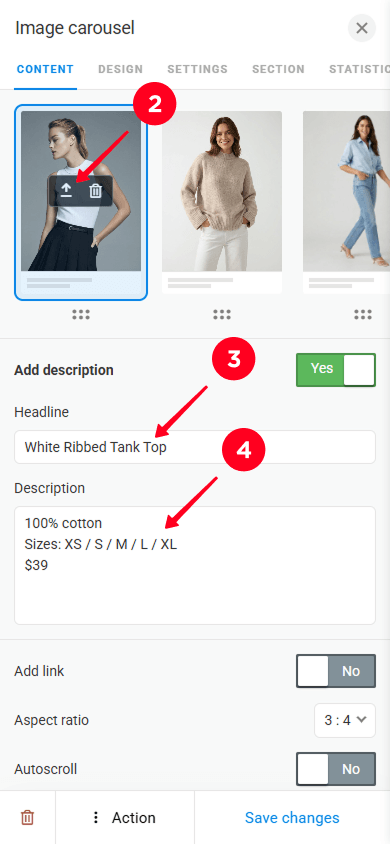

06. Set up the remaining carousel slides in the same way by repeating steps 2–5.
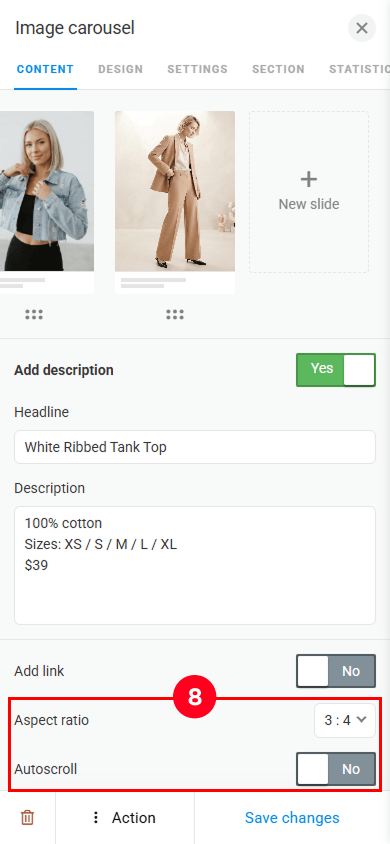
07. To add a new slide, tap New slide.

08. Optionally, set the aspect ratio of the images and activate auto-scroll.
09. Save the changes.

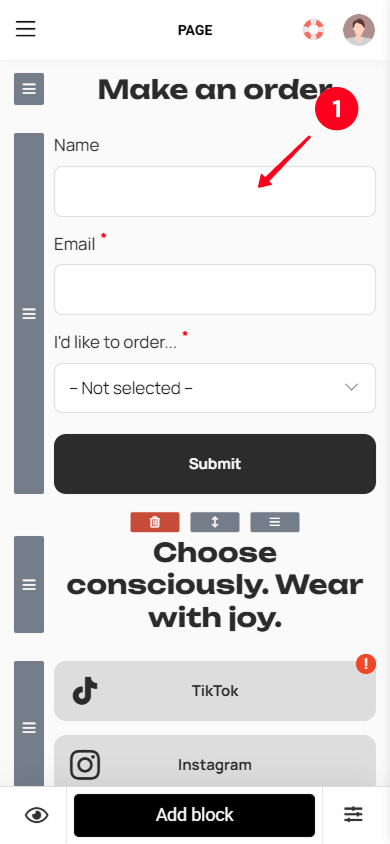
The order section uses a Form block. Customers can use it to send their contact details and select the products they want to order. To customize the form:
- Tap the form.
- Tap Add field to add another field.
- To remove a field, tap the trash icon.
- Save the changes.

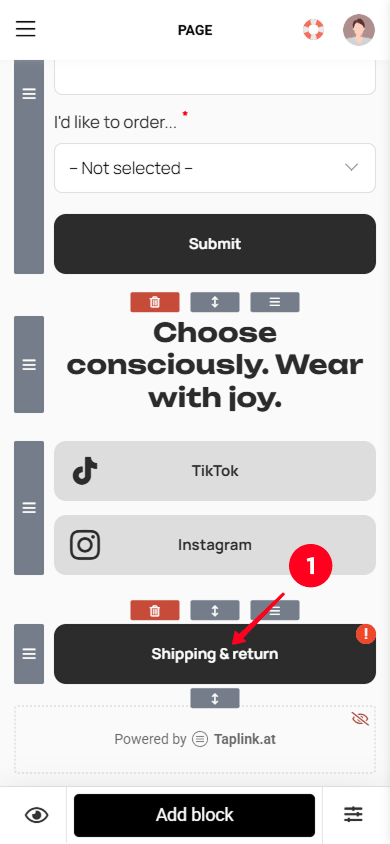
Customers need to know how they will receive and return their orders. Add a link to your shipping and return policy by following these steps:
- Tap the shipping & return button.
- Optionally, change the button name.
- Paste a link to your policy.
- Save the changes.

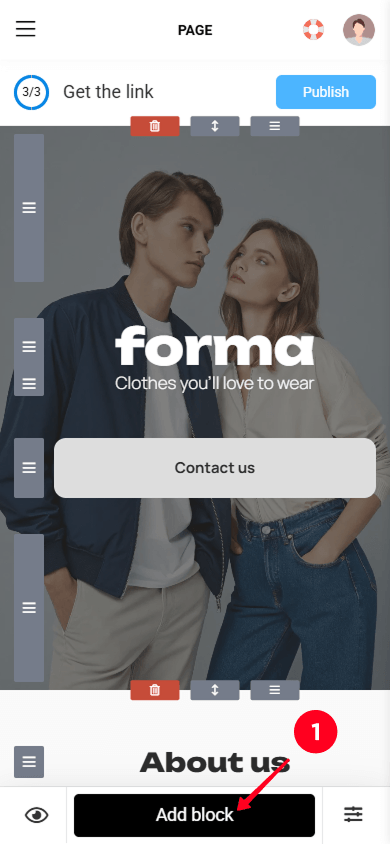
You can add blocks to your clothing website. To do so:
- Tap Add block.
- Select the required block. For example, we selected Media and text.

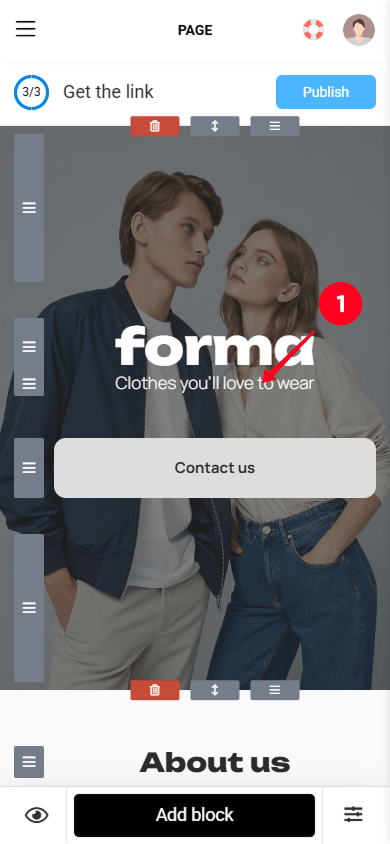
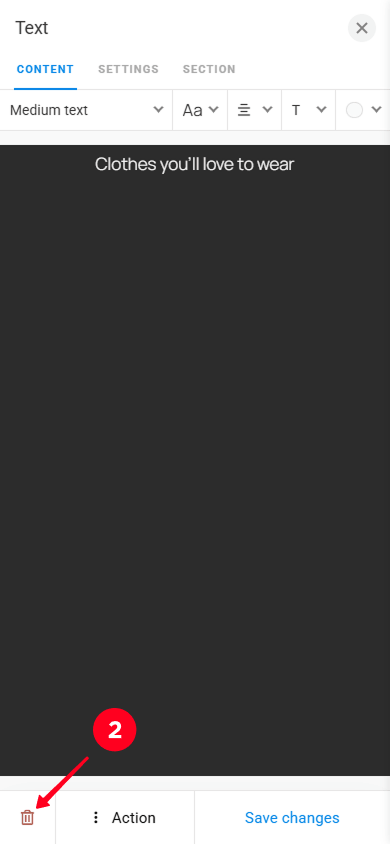
To delete blocks that you don’t need for your website:
- Open the block you want to delete.
- Tap the trash icon.
- Tap Delete.

Your website should match your clothing brand and make it easy for visitors to browse your products.
Taplink offers three ways to customize your website:
- Themes for applying a ready-made visual style.
- Simple settings for changing the main colors, fonts, buttons, and other elements.
- Advanced settings for making more detailed design changes.
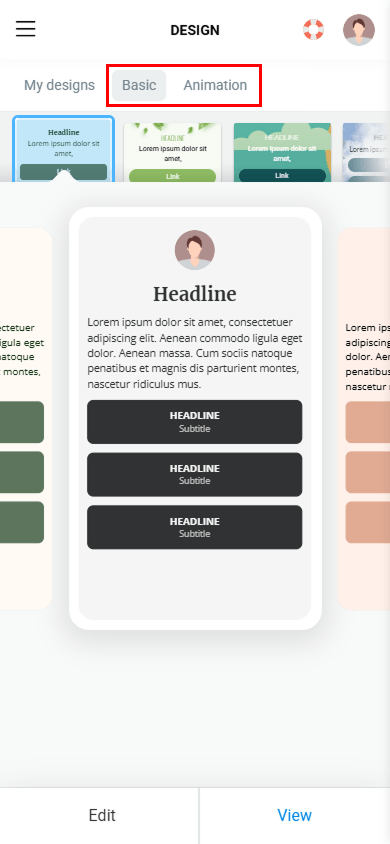
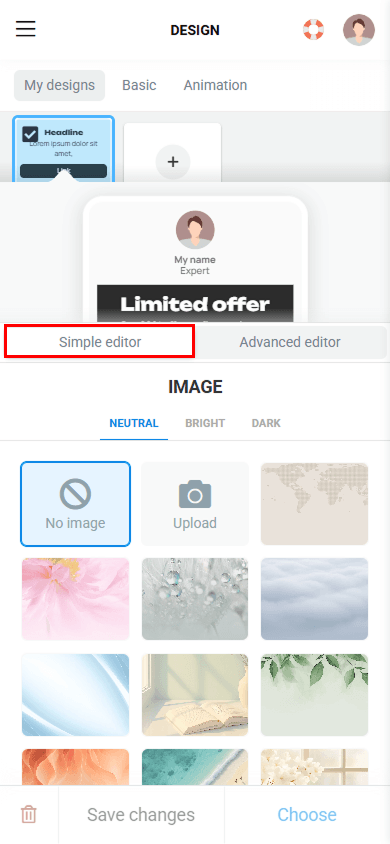

To access design settings:
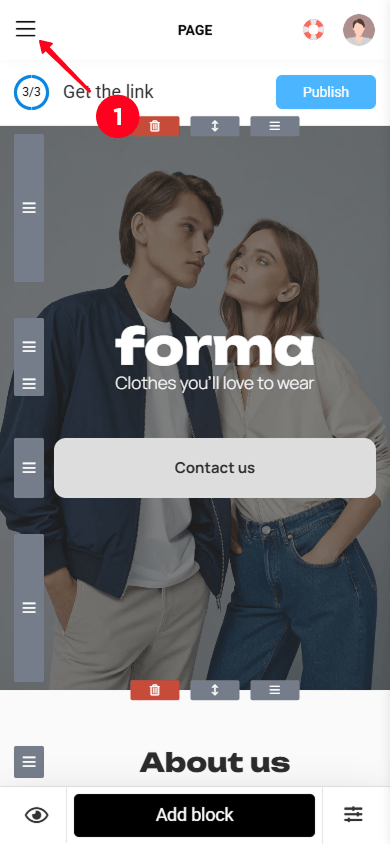
- Tap the hamburger menu.
- Open the Design tab.

Use this checklist before publishing your site.
| Element | Ready |
| Brand name | ✅ |
| Brand logo | ✅ |
| Product photos | ✅ |
| Product descriptions | ✅ |
| Prices and sizes | ✅ |
| Shipping information | ✅ |
| Return policy | ✅ |
| Contact information | ✅ |
| Social media links | ✅ |
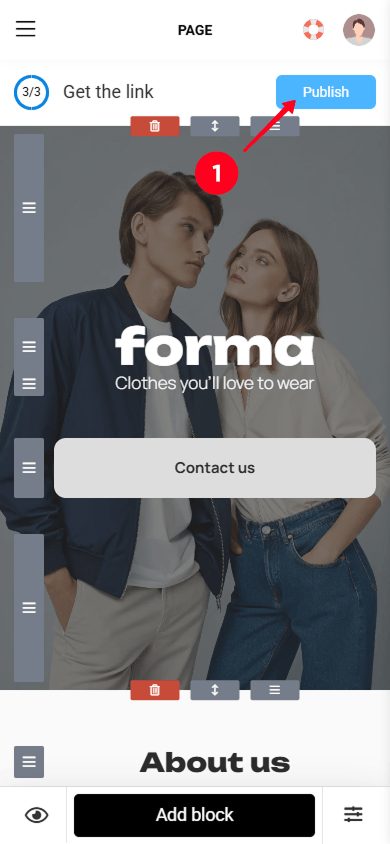
When everything is done, publish your website:
- Tap Publish.
- Select a domain.
- Type a username for your website.
- Tap Connect.

You can also connect a custom domain with the Business plan. This gives you a dedicated web address for your brand.
Once you’ve published your website, test every link before sharing it.
A new clothing website needs traffic.
Social media is one of the main traffic sources for fashion brands. Post content that shows your products in context. For example, you can post:
- Outfit videos.
- Product close-ups.
- Styling ideas.
- New collection announcements.
- Behind-the-scenes content.
- Customer photos.
- Limited-time offers.
Share your website link across the social media platforms where you promote your brand, including Instagram, TikTok, Facebook, or Pinterest. You can also share it in posts and stories to direct visitors to your clothing website.
Use a short call to action near the link, for example:
- Shop the collection.
- View our latest arrivals.
- Order your favorite pieces.
- Explore the full catalog.
You can also update the bio text when you launch a new collection, run a promotion, or want to direct visitors to a specific product page.
Track how visitors interact with your clothing website.
Taplink analytics can show you:
- Page views.
- Clicks.
- Link conversions.
- Visitor devices.
- Visitor locations.
- Traffic sources.
- Leads.
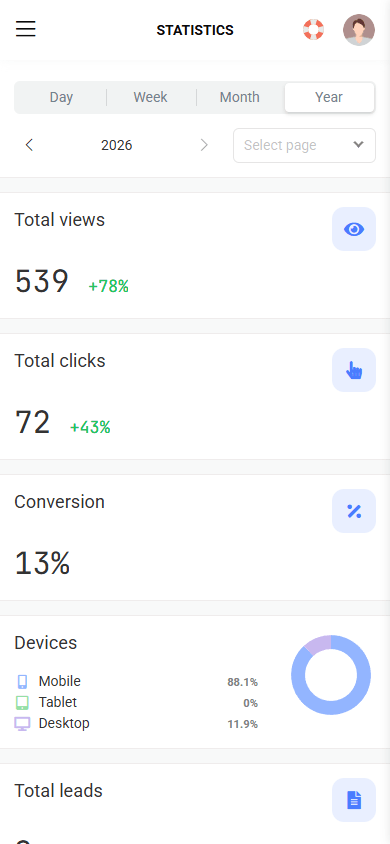

You can also connect external analytics tools, such as Google Analytics, Hotjar, and Clicky.
Use this data to identify your most popular products and traffic sources.
For example, many clicks on one product can indicate strong interest. You can then feature that product more often in your social content.
You can add a form to your clothing website. Through it, customers can check product availability, reserve an item for pickup, join a waitlist, or request a notification when an item is back in stock.
When someone submits a form, their information is automatically added to Taplink CRM. The CRM stores the details they provide, such as their name, email, phone number, and text information.

You can then edit customers’ details, add tags, and change statuses to separate new requests from those you’ve already handled.
Taplink CRM is available on the Business plan.
You don’t need coding skills to create a clothing website. With Taplink, you can start with a fashion template. Then add your products, brand information, order form, FAQ, social links, and any other content you think is important for your website.
The basic process is simple:
- Sign up on Taplink.
- Choose a creation method.
- Add your brand information
- Add your product information.
- Add shipping and return information.
- Include contact details.
- Add your social media links.
- Publish your website.
- Track your results.
This gives you a mobile-first website for presenting your clothing brand and products.
A clothing website takes about 15 minutes to create with a Taplink template.
The template provides a ready-made structure and design. You only need to replace the sample text, upload your product images, add product details, and enter your contact information.
The exact time depends on how much content you need to add. A small clothing collection takes less time than a large catalog with many products.
Yes. Taplink doesn’t require coding skills. You can choose a ready-made clothing website template and customize it with your own content.
A clothing website should include your main products, product details, prices, sizes, and shopping options. It should also include shipping, returns, contact information, and social media. A brand story can help explain your positioning.
Yes. Taplink supports custom domains on the Business plan. You can connect a domain that uses your clothing brand name.